Appium Tutorial for Mobile App Testing

Rimpal MistryCo-Founder & VP Operations
 30/06/2026
Mobile test automation requires a tool that works across Android and iOS without modifying app code. Appium is that tool. Appium connects test scripts to real devices and emulators through a single API.
This tutorial covers Appium 2.0 setup, architecture, element location, and test execution with working code in Java and Python.
What Is Appium?
Appium is an open source mobile test automation framework that uses the W3C WebDriver protocol to drive native, hybrid, and mobile web apps on Android and iOS.
Appium runs as a local server that receives HTTP requests from test scripts and forwards them to platform-specific drivers. The cross-platform support is the most important attribute. One test script written against the WebDriver API can execute on both Android and iOS with minimal changes.
Dan Cuellar started building Appium in 2011 at Zoosk. The project was open-sourced in August 2012. And It is maintained by the OpenJS Foundation. The current version is Appium 2.0, released in July 2023. Appium 2.0 introduced a modular driver and plugin architecture. This modular approach is one reason Appium dominates mobile and web automation testing across QA teams. This architecture replaced the monolithic Appium 1.x server that bundled all platform drivers into a single package.
The framework supports 5 programming languages for writing tests: Java, Python, JavaScript, Ruby, and C#. Each language has an official Appium client library.
How Does Appium 2.0 Architecture Work?
Appium 2.0 uses a client-server architecture where the Appium server receives test commands over HTTP and delegates execution to platform-specific drivers.
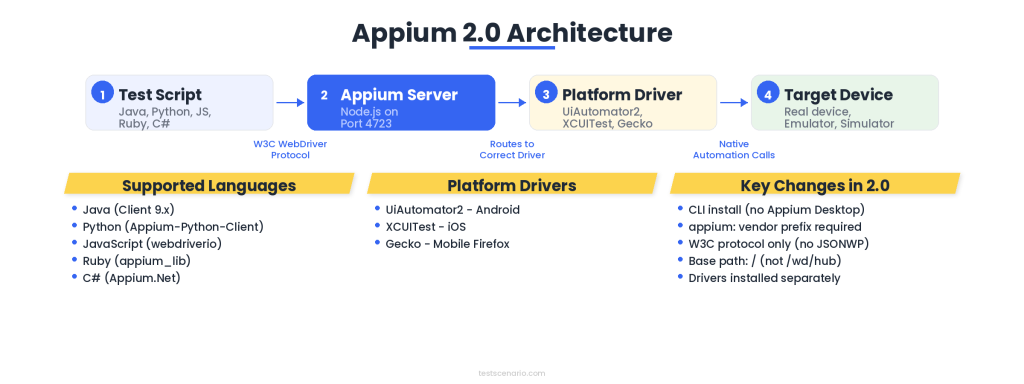
The server acts as a translator between the W3C WebDriver protocol and native automation frameworks. Each driver handles one platform independently.
The test script (client) sends HTTP requests to the Appium server. The Appium server routes each request to the correct driver. The driver translates the command into native framework calls. UiAutomator2 handles Android commands. XCUITest handles iOS commands.
What Is the Role of Appium Server in Test Execution?
The Appium server is a Node.js HTTP server that creates and manages test sessions. The server listens on port 4723 by default. Test scripts connect to the server by sending a POST request to create a new session.
The session creation request includes capabilities that specify the target device, platform, and app.
The server validates the capabilities. The server selects the correct driver. The server creates a session and returns a session ID. All subsequent commands from the test script include this session ID.
The server routes those commands to the driver that owns the session.
/wd/hub to / (root). Scripts migrating from Appium 1.x must update the server URL from http://localhost:4723/wd/hub to http://localhost:4723.What Are Appium Drivers and Plugins?
Appium drivers are platform-specific modules that translate WebDriver commands into native automation framework calls. Each driver is installed separately from the Appium server. This modular design allows independent version updates per platform.
The 3 most used Appium drivers are UiAutomator2 (Android), XCUITest (iOS), and Gecko (mobile Firefox). UiAutomator2 uses Google’s UiAutomator framework under the hood.
XCUITest uses Apple’s XCTest framework. Each driver maintains its own release cycle.
Plugins extend the server with cross-cutting capabilities. The images plugin adds visual comparison. The gestures plugin simplifies W3C Action sequences. The relaxed-caps plugin allows non-standard capability names.
Plugins are installed the same way as drivers: appium plugin install <name>.
What Are the Prerequisites for Setting Up Appium?
Appium 2.0 requires 6 prerequisites: Node.js (v16+), Java JDK (v11+), Android SDK, Xcode (macOS only), an IDE, and a connected device or emulator.
Each prerequisite serves a specific role in the automation chain. Missing any one of them causes session creation failures.
| Prerequisite | Role |
|---|---|
| Node.js (v16+) | Runs the Appium server |
| Java JDK (v11+) | Compiles and runs Java test scripts |
| Android SDK | Provides platform tools (adb, emulator) and system images |
| Xcode (macOS only) | Provides iOS build tools and simulator |
| IDE (IntelliJ or VS Code) | Provides the development environment |
| Device or emulator | Provides the test target |
How Do You Set Up Java and Android SDK?
Install JDK 11 or higher from Oracle or Adoptium. Verify the installation by running java -version in the terminal. The output displays the installed version number.
Download Android Studio from developer.android.com. Open Android Studio after installation. Navigate to SDK Manager. Install the latest Android SDK Platform, Android SDK Build-Tools, Android SDK Platform-Tools, and Android SDK Command-Line Tools.
Note the SDK installation path. The default path on Windows is C:\Users\<name>\AppData\Local\Android\Sdk. The default path on macOS is ~/Library/Android/sdk.
Create an Android emulator through AVD Manager in Android Studio. Select a device profile (Pixel 7 recommended). Select a system image (API 34 recommended). Launch the emulator to confirm it boots.
How Do You Configure Environment Variables for Appium?
Set JAVA_HOME and ANDROID_HOME environment variables to point to the JDK and Android SDK installation directories. The Appium server reads these variables during session creation.
On macOS or Linux, add these lines to ~/.bashrc or ~/.zshrc:
export JAVA_HOME=/Library/Java/JavaVirtualMachines/jdk-11.jdk/Contents/Home
export ANDROID_HOME=~/Library/Android/sdk
export PATH=$PATH:$ANDROID_HOME/platform-tools:$ANDROID_HOME/tools
On Windows, set JAVA_HOME and ANDROID_HOME through System Properties > Environment Variables.
Add %ANDROID_HOME%\platform-tools to the PATH variable.
Verify both variables by running echo $JAVA_HOME and echo $ANDROID_HOME in the terminal.
Connect a physical device via USB and run adb devices to confirm the connection. The device serial number appears in the output.
How Do You Install Appium 2.0?
Appium 2.0 installation requires 3 steps: install Node.js, install the Appium server via npm, and install at least one platform driver. The entire process takes under 10 minutes.
Appium Desktop is discontinued. Appium 2.0 runs only through the command line.
How Do You Install Appium Server Using CLI?
Install Appium globally using npm with the command npm install -g appium. This installs the Appium server binary.
Verify the installation by running appium --version. The output displays the installed version (2.x.x).
npm install -g appium
appium --version
Start the server by running appium in the terminal. The server starts on http://0.0.0.0:4723. The terminal displays “Appium REST http interface listener started on 0.0.0.0:4723”. Stop the server with Ctrl+C.
Run appium driver list to see all available drivers. No drivers are installed by default in Appium 2.0. Each driver requires separate installation.
How Do You Install UiAutomator2 and XCUITest Drivers?
Install the Android driver with appium driver install uiautomator2 and the iOS driver with appium driver install xcuitest.
Each command downloads and registers the driver with the Appium server.
appium driver install uiautomator2
appium driver install xcuitest
Verify installed drivers by running appium driver list --installed. The output lists UiAutomator2 and XCUITest with their version numbers.
appium driver doctor uiautomator2 to validate that all Android prerequisites are met. The doctor command checks Java, Android SDK, emulator availability, and environment variables. Fix any reported issues before running tests.How Do You Locate Mobile Elements Using Appium Inspector?
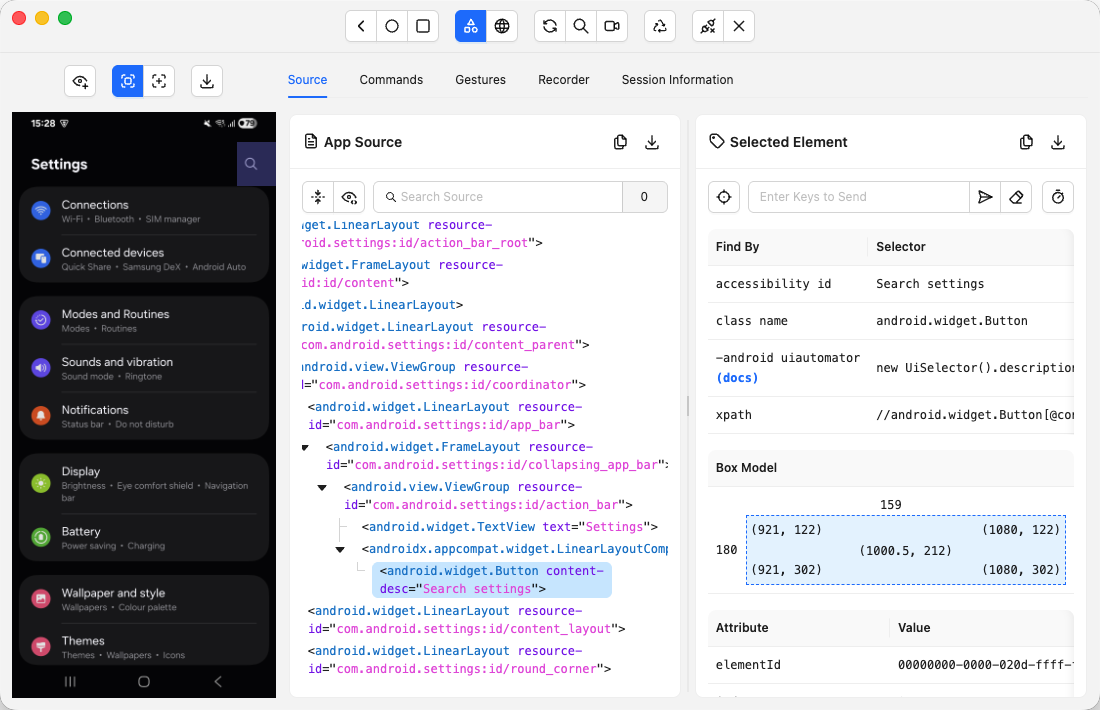
Appium Inspector is a standalone desktop application that displays the UI hierarchy of a mobile app and exposes element properties for locator identification.
Appium Inspector connects to a running Appium session. The inspector renders a screenshot of the device on the left panel and the element tree on the right panel.
UIAutomatorViewer, the older Android SDK tool, is no longer the recommended approach. Appium Inspector works across both Android and iOS. Appium Inspector supports all Appium 2.0 locator strategies.
How Do You Set Up Appium Inspector as a Standalone App?
Download Appium Inspector from the official GitHub releases page at github.com/appium/appium-inspector. Install the application for your operating system (macOS, Windows, or Linux).
Launch Appium Inspector. Enter the Appium server URL (http://127.0.0.1:4723). Leave the base path as / for Appium 2.0. Enter the desired capabilities as JSON:
{
 "platformName": "Android",
 "appium:automationName": "UiAutomator2",
 "appium:deviceName": "emulator-5554",
 "appium:app": "/path/to/your/app.apk"
}
Click “Start Session”. The inspector loads the app on the device and displays the UI tree. Click any element on the screenshot to see its properties: resource-id, class, text, content-desc, and bounds.
Which Locator Strategies Does Appium 2.0 Support?
Appium 2.0 supports 6 locator strategies: ID, Accessibility ID, Class Name, XPath, Android UIAutomator, and iOS Class Chain.
Each strategy has different reliability and performance characteristics.
| Locator Strategy | Android Attribute | iOS Attribute | Speed | Reliability |
|---|---|---|---|---|
| ID | resource-id | name | Fast | High |
| Accessibility ID | content-desc | accessibilityIdentifier | Fast | High |
| Class Name | class | type | Fast | Low (not unique) |
| XPath | any attribute | any attribute | Slow | Medium |
| Android UIAutomator | UiSelector | N/A | Fast | High |
| iOS Class Chain | N/A | class chain | Fast | High |
ID and Accessibility ID are the preferred strategies. Both are fast and produce stable locators. XPath is the fallback when no ID or Accessibility ID exists. XPath queries are slower because they traverse the entire UI tree.
MobileBy class is replaced with AppiumBy. The correct syntax is AppiumBy.accessibilityId("element_id"). The old MobileBy.AccessibilityId syntax throws a compilation error.How Do You Configure Capabilities in Appium 2.0?
Capabilities define the target device, platform, and app for each Appium test session. Appium 2.0 requires the appium: vendor prefix for all non-standard capabilities.
The platformName capability is the only one that does not need the prefix.
What Are UiAutomator2Options for Android Testing?
UiAutomator2Options is a Java class that builds Android capabilities with type safety and auto-completion.
This class replaced the generic DesiredCapabilities approach from Appium 1.x.
UiAutomator2Options options = new UiAutomator2Options()
 .setPlatformName("Android")
 .setDeviceName("emulator-5554")
 .setApp("/path/to/app.apk")
 .setAutomationName("UiAutomator2");
The setApp method accepts an APK file path or a URL. The setDeviceName method accepts the device serial from adb devices. The setAutomationName method must be UiAutomator2.
Finding the app package and app activity is required for testing already-installed apps. Run adb shell dumpsys window windows | grep -E 'mCurrentFocus' with the target app open.
The output displays the package name and activity name. Use setAppPackage() and setAppActivity() instead of setApp() for installed apps. Teams testing across multiple Android versions pair Appium with emulators and simulators to maximize device coverage without hardware costs.
What Are XCUITestOptions for iOS Testing?
XCUITestOptions is the equivalent class for iOS that builds XCUITest-specific capabilities. iOS testing requires macOS with Xcode installed. Simulators launch through Xcode.
XCUITestOptions options = new XCUITestOptions()
 .setPlatformName("iOS")
 .setDeviceName("iPhone 15")
 .setPlatformVersion("17.0")
 .setApp("/path/to/app.app")
 .setAutomationName("XCUITest");
The setPlatformVersion method must match the simulator OS version.
The setApp method accepts a .app file (simulator) or .ipa file (real device). Real device testing requires a valid Apple Developer provisioning profile and a signing identity.
How Do You Write Your First Appium Test?
Writing an Appium test follows 4 steps: create a driver instance with capabilities, locate an element, perform an action on the element, and assert the result.
The test structure is identical to Selenium WebDriver tests. The difference is the driver class and capabilities.
How Do You Write an Appium Test in Java?
Create a Java project with Maven. Add the Appium Java client dependency (version 9.x) and TestNG to pom.xml.
<dependency>
 <groupId>io.appium</groupId>
 <artifactId>java-client</artifactId>
 <version>9.3.0</version>
</dependency>
Write a test that opens the Calculator app and performs an addition:
import io.appium.java_client.android.AndroidDriver;
import io.appium.java_client.android.options.UiAutomator2Options;
import io.appium.java_client.AppiumBy;
import org.testng.Assert;
import org.testng.annotations.Test;
import java.net.URL;
public class CalculatorTest {
 @Test
 public void testAddition() throws Exception {
 UiAutomator2Options options = new UiAutomator2Options()
 .setPlatformName("Android")
 .setDeviceName("emulator-5554")
 .setAppPackage("com.google.android.calculator")
 .setAppActivity("com.android.calculator2.Calculator");
 AndroidDriver driver = new AndroidDriver(
 new URL("http://127.0.0.1:4723"), options
 );
 driver.findElement(AppiumBy.id("digit_2")).click();
 driver.findElement(AppiumBy.id("op_add")).click();
 driver.findElement(AppiumBy.id("digit_3")).click();
 driver.findElement(AppiumBy.id("eq")).click();
 String result = driver.findElement(
 AppiumBy.id("result_final")
 ).getText();
 Assert.assertEquals(result, "5");
 driver.quit();
 }
}
Start the Appium server in a separate terminal before running the test. Run appium to start the server. Execute the test from the IDE or with mvn test.
How Do You Write an Appium Test in Python?
Install the Appium Python client with pip install Appium-Python-Client.
The Python client supports the same capabilities and locator strategies as the Java client.
from appium import webdriver
from appium.options.android import UiAutomator2Options
from appium.webdriver.common.appiumby import AppiumBy
options = UiAutomator2Options()
options.platform_name = "Android"
options.device_name = "emulator-5554"
options.app_package = "com.google.android.calculator"
options.app_activity = "com.android.calculator2.Calculator"
driver = webdriver.Remote(
 "http://127.0.0.1:4723",
 options=options
)
driver.find_element(AppiumBy.ID, "digit_2").click()
driver.find_element(AppiumBy.ID, "op_add").click()
driver.find_element(AppiumBy.ID, "digit_3").click()
driver.find_element(AppiumBy.ID, "eq").click()
result = driver.find_element(AppiumBy.ID, "result_final").text
assert result == "5"
driver.quit()
Run the test with python test_calculator.py. The Appium server log displays each command as it executes. Failed element lookups appear in the server log with the locator strategy and value.
How Do You Perform Gestures Using W3C Actions in Appium?
W3C Actions is the standard API for gesture automation in Appium 2.0. W3C Actions replaced the deprecated TouchAction and MultiTouchAction classes.
TouchAction was removed from the UiAutomator2 driver in version 3. All gesture code must use W3C Actions or the mobile gesture extension commands.
W3C Actions model input as sequences of pointer events: pointer down, pointer move, pointer up, and pause. Each gesture is a sequence of these events with coordinates and durations.
TouchAction and MultiTouchAction classes are removed from the UiAutomator2 driver v3. All code using these classes must migrate to W3C Actions.How Do You Tap and Swipe Using W3C Actions?
A tap is a pointer down followed by a pointer up at the same coordinates. A swipe is a pointer down, a pointer move to a different coordinate, and a pointer up.
Java tap example:
PointerInput finger = new PointerInput(
 PointerInput.Kind.TOUCH, "finger"
);
Sequence tap = new Sequence(finger, 1);
tap.addAction(finger.createPointerMove(
 Duration.ZERO, PointerInput.Origin.viewport(), 500, 1000
));
tap.addAction(finger.createPointerDown(
 PointerInput.MouseButton.LEFT.asArg()
));
tap.addAction(finger.createPointerUp(
 PointerInput.MouseButton.LEFT.asArg()
));
driver.perform(List.of(tap));
Java swipe example (swipe up):
Sequence swipe = new Sequence(finger, 1);
swipe.addAction(finger.createPointerMove(
 Duration.ZERO, PointerInput.Origin.viewport(), 500, 1500
));
swipe.addAction(finger.createPointerDown(
 PointerInput.MouseButton.LEFT.asArg()
));
swipe.addAction(finger.createPointerMove(
 Duration.ofMillis(600), PointerInput.Origin.viewport(), 500, 500
));
swipe.addAction(finger.createPointerUp(
 PointerInput.MouseButton.LEFT.asArg()
));
driver.perform(List.of(swipe));
The Duration.ofMillis(600) parameter controls swipe speed. Lower values produce faster swipes. Higher values produce slower, more controlled swipes.
How Do You Scroll and Long Press Using W3C Actions?
A scroll is identical to a swipe with a longer duration (1000ms+). The duration difference tells the OS to interpret the gesture as a scroll rather than a fling.
A long press is a pointer down, a pause, and a pointer up:
Sequence longPress = new Sequence(finger, 1);
longPress.addAction(finger.createPointerMove(
 Duration.ZERO, PointerInput.Origin.viewport(), 500, 1000
));
longPress.addAction(finger.createPointerDown(
 PointerInput.MouseButton.LEFT.asArg()
));
longPress.addAction(new Pause(finger, Duration.ofSeconds(2)));
longPress.addAction(finger.createPointerUp(
 PointerInput.MouseButton.LEFT.asArg()
));
driver.perform(List.of(longPress));
The Duration.ofSeconds(2) pause duration determines how long the press is held. Android requires a minimum 500ms hold to trigger a long press event.
driver.executeScript("mobile: scrollGesture", params) accepts a map with direction, percent, and element parameters. Extension commands are simpler for basic gestures. W3C Actions are necessary for complex multi-finger gestures like pinch and zoom.How Do You Test Hybrid Apps with Appium?
Hybrid app testing in Appium requires switching between the NATIVE_APP context and the WEBVIEW context. Hybrid apps display native UI components alongside embedded web content rendered in a WebView.
Appium treats each rendering engine as a separate context. Tests must switch to the correct context before interacting with elements in that layer.
How Do You Detect Native and WebView Contexts?
Call driver.getContextHandles() to get the list of all available contexts.
A native-only app returns one context: NATIVE_APP. A hybrid app returns two or more: NATIVE_APP and WEBVIEW_<package_name>.
Set<String> contexts = driver.getContextHandles();
for (String context : contexts) {
 System.out.println(context);
}
// Output for a hybrid app:
// NATIVE_APP
// WEBVIEW_com.example.myapp
Call driver.getContext() to check the current active context. The default context at session start is NATIVE_APP.
Android hybrid apps require Chrome DevTools Protocol (CDP) debugging enabled in the WebView. The app developer must set WebView.setWebContentsDebuggingEnabled(true) in the app code. Without this flag, Appium cannot detect the WEBVIEW context.
How Do You Switch Between Contexts During a Test?
Call driver.context("WEBVIEW_<package_name>") to switch to the web context.
All subsequent element interactions use web locators (CSS selectors, XPath for HTML). Call driver.context("NATIVE_APP") to switch back to the native context.
// Switch to web context
driver.context("WEBVIEW_com.example.myapp");
driver.findElement(By.cssSelector("#login-button")).click();
// Switch back to native context
driver.context("NATIVE_APP");
driver.findElement(AppiumBy.id("native_element")).click();
Web context locators follow standard Selenium syntax. Native context locators use AppiumBy. Mixing locator types in the wrong context throws a NoSuchElementException.
The sections above cover the complete Appium 2.0 workflow for Android and iOS. The sections below provide reference commands and troubleshooting guidance for common issues during test development. The full setup for running automated tests on native and hybrid mobile apps covers framework design, parallel execution, and CI/CD integration.
What Are the Most Used Appium Commands?
Appium 2.0 provides 3 categories of commands: session commands, element commands, and device commands.
The table below lists the commands used most frequently during test development.
| Category | Command | Description |
|---|---|---|
| Session | driver.getSessionId() |
Returns the active session ID |
| Session | driver.getPageSource() |
Returns the full UI hierarchy as XML |
| Session | driver.quit() |
Terminates the session and closes the app |
| Element | driver.findElement(AppiumBy.id("")) |
Locates a single element by resource-id |
| Element | driver.findElements(AppiumBy.className("")) |
Locates all elements matching the class name |
| Element | element.click() |
Taps the element |
| Element | element.sendKeys("text") |
Types text into the element |
| Element | element.clear() |
Clears the text field |
| Element | element.getText() |
Returns the visible text |
| Element | element.isDisplayed() |
Returns true when the element is visible |
| Device | driver.activateApp("package") |
Launches an installed app |
| Device | driver.terminateApp("package") |
Stops a running app |
| Device | driver.installApp("/path/to/app") |
Installs an APK or IPA |
| Device | driver.isAppInstalled("package") |
Returns true when the app is installed |
| Device | driver.hideKeyboard() |
Dismisses the on-screen keyboard |
| Device | ((TakesScreenshot)driver).getScreenshotAs(OutputType.FILE) |
Captures a screenshot |
resetApp(), launchApp(), and closeApp() are removed. Use terminateApp() followed by activateApp() as the replacement for resetApp().What Are Common Appium Setup Errors and How Do You Fix Them?
The 5 most common Appium errors are: session not created, driver not installed, capability mismatch, element not found, and ADB connection failure. Each error has a specific root cause and fix.
“Could not create a session” error. The Appium server cannot start a session with the given capabilities. The most common cause is a missing or incorrect appium:automationName capability. Verify that the value matches the installed driver name exactly: UiAutomator2 for Android, XCUITest for iOS. Run appium driver list --installed to confirm the driver is registered.
“The driver is not installed” error. The Appium server received a session request for a driver that is not installed. Run appium driver install uiautomator2 to install the Android driver. Run appium driver install xcuitest to install the iOS driver.
“InvalidArgumentError: capabilities” error. Appium 2.0 requires the appium: vendor prefix on all non-standard capabilities. The platformName capability does not need the prefix. All other capabilities (deviceName, app, automationName) require the appium: prefix when using raw JSON. The Options classes (UiAutomator2Options, XCUITestOptions) add the prefix automatically.
“NoSuchElementException” error. The element locator does not match any visible element. The 3 most common causes are: the element has not loaded yet (add an explicit wait), the element is inside a WEBVIEW context (switch context first), and the locator value is incorrect (verify in Appium Inspector). Add WebDriverWait with ExpectedConditions.visibilityOfElementLocated() to handle loading delays.
“ADB device not found” error. The device is not connected or USB debugging is disabled. Run adb devices to verify the connection. Enable USB debugging in the device’s Developer Options. Revoke and re-authorize USB debugging authorizations when the device serial shows as “unauthorized”.
appium driver doctor uiautomator2 to check all Android prerequisites. The doctor command reports missing tools, incorrect paths, and version mismatches. Fix every reported issue before running tests.Appium test automation for mobile apps requires proper environment setup and current Appium 2.0 practices. For teams that need mobile automation testing services without building the framework in-house, dedicated QA teams handle the setup, execution, and maintenance.

 18 May 2026


